Guide
How to set up online booking for clients in Telegram in a few minutes
Short answer: open @DockerVisitBot in Telegram and tap Create my page. In four steps you enter who you are and where you work, your services with duration and price, your working hours and the address of your link. You get a link like t.me/DockerVisitBot?startapp=your_name right away — send it to clients or put it in your bio. Clients pick a free time themselves, you get a message, they get a confirmation and reminders. Free; clients install nothing.
What you need
- Telegram on your phone or computer
- Your services: name, duration and price (the price is optional)
- Your working hours
- A few minutes
Creating the booking page
-
Step 1
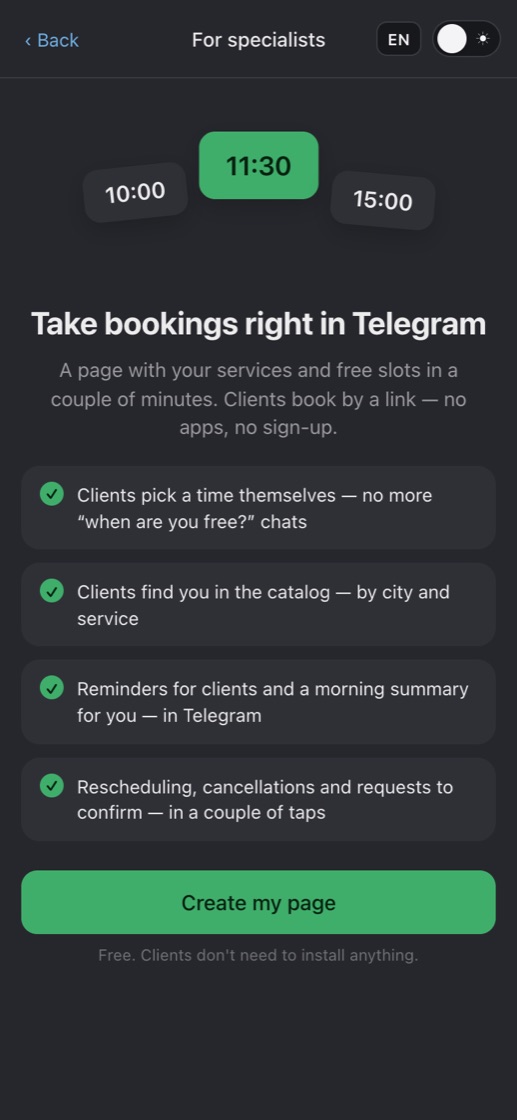
Open the bot and tap “Create my page”
Open @DockerVisitBot — the button ✨ Create my page is right in the bot’s welcome message. In the app it is in Profile: “I'm a specialist — create a page”. The link t.me/DockerVisitBot?startapp=new opens page creation straight away.
-
Step 2
About you
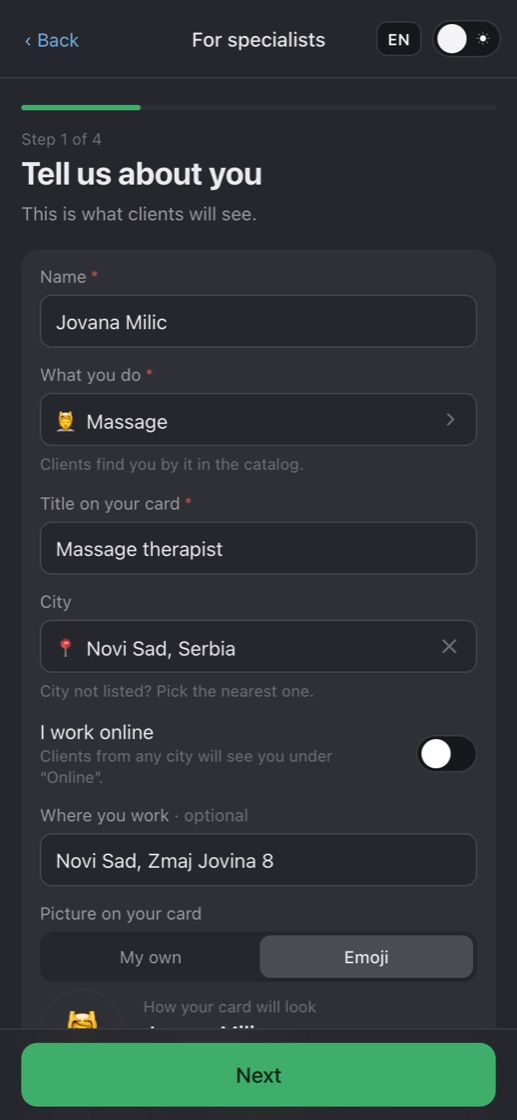
This is how clients will see you. Required: your name (taken from Telegram, you can change it), What you do — a category, and the Title on your card — your own words, like “Colourist” or “Lana Studio”.
- The category is how clients find you in the catalog.
- City — start typing and pick from the suggestions; the city also sets your time zone. Working remotely — turn on I work online.
- The address is optional. The picture on your card: your Telegram photo, an emoji or your own image, such as a studio logo.
-
Step 3
Services
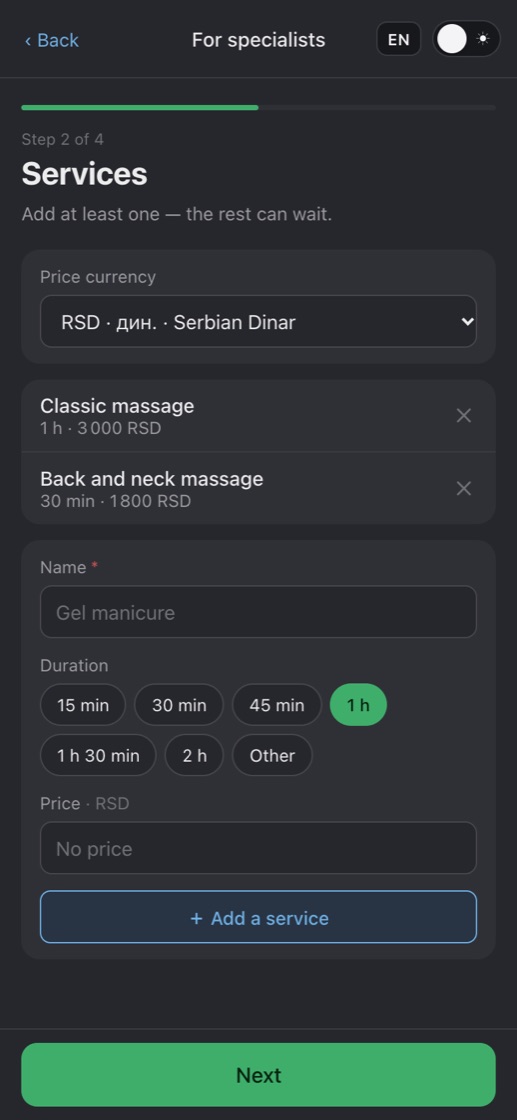
Add at least one service: name, duration (from 15 minutes to 2 hours with one tap, or Other) and price — you can leave it empty. Choose the price currency at the top.
- The rest can be added later in the workspace, under Services: a description, a “From” price, hiding a service from clients.
-
Step 4
Working hours
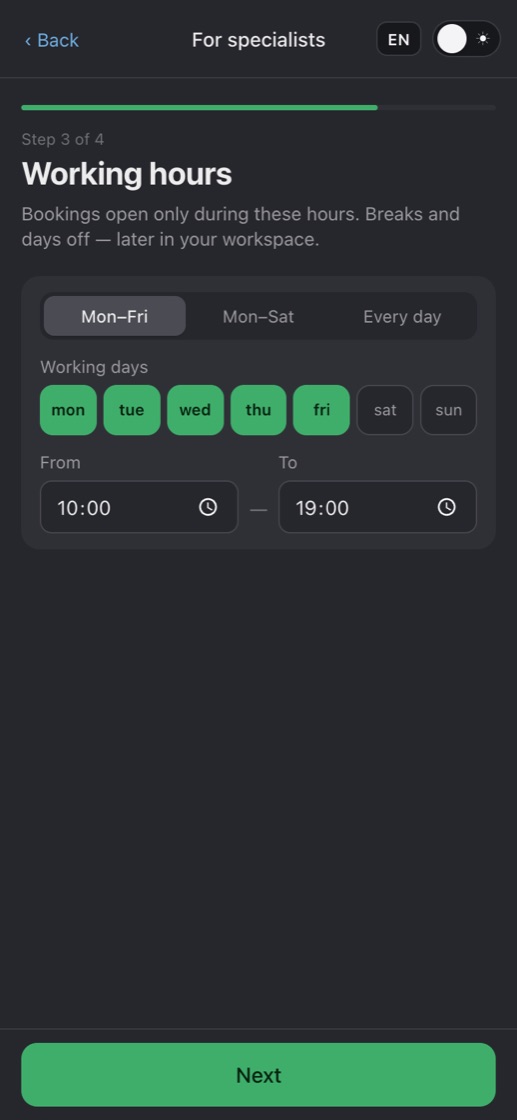
Choose the days — Mon–Fri, Mon–Sat, Every day or any days by hand — and the hours from and to. Bookings are open only during these hours.
- You don’t create slots by hand: free time is calculated from your hours and the length of each service.
- Different hours on different days and a lunch break (a second interval in the same day) — later in Working hours in the workspace.
-
Step 5
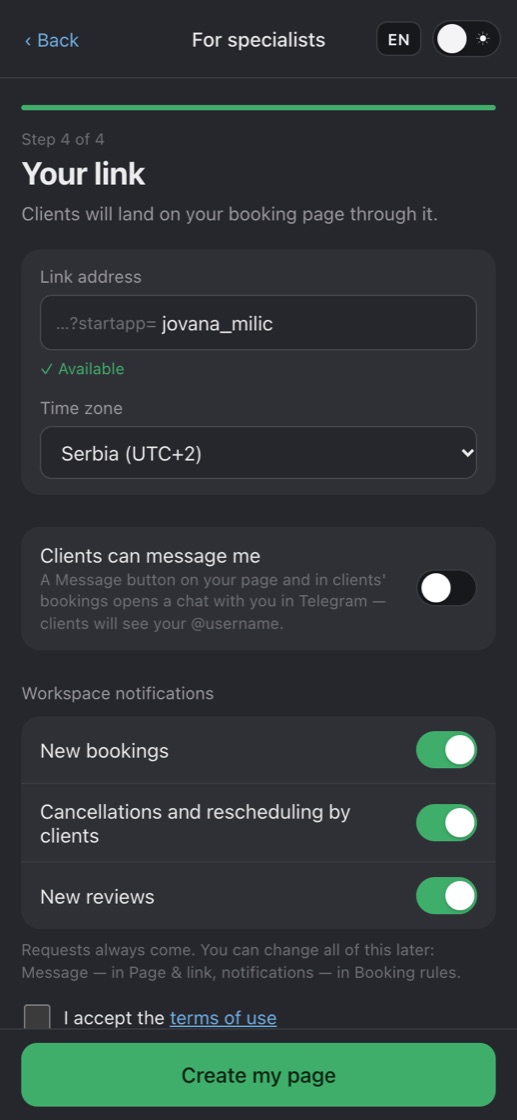
Your link
The bot suggests a link address from your username or name and checks that it’s free: Latin letters, digits and underscores, 3 to 32 characters. Check your time zone — appointment times are shown in it.
- Clients can message me — off by default. Turn it on and your page and clients’ bookings get a “Message” button that opens a chat with you; clients will see your @username.
- Notifications: new bookings, cancellations and rescheduling by clients, new reviews. Requests that need your confirmation always arrive.
- Accept the terms of use with the checkbox and tap Create my page.
-
Step 6
Done — the page is accepting bookings
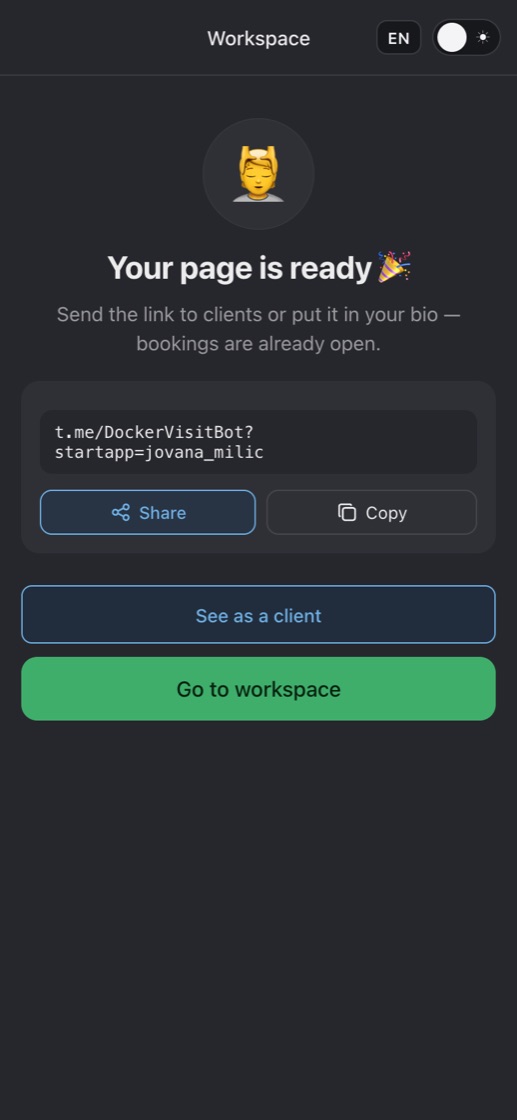
The page is ready to take bookings at once and is already listed in the catalog. Right there you get your link with the Share and Copy buttons, See as a client and Go to workspace. The Workspace tab now appears in the app.


What the client sees
The client opens your link in Telegram — no app, no sign-up, the name comes from Telegram.
- Your page: who you are, where you work, services and prices, reviews.
- A service, a day and a time — only really free slots: your hours, breaks, existing bookings, the break between clients and the minimum notice are all taken into account.
- Several services in one booking — say, manicure and pedicure back to back, with 10 minutes between them: time is found for the whole visit at once.
- Confirmation: the client can add a comment (and a phone number, if you ask for one).
- A message from the bot: “You're booked” or, if you confirm manually, “Request sent” — with buttons to add the booking to the calendar, reschedule or cancel it.

Your page
Work photos, services, prices and address — what a client sees by your link.

Free slots
Only times that are really free: hours, breaks and existing bookings are counted. One more service can be added to the same visit.

Booked
Confirmation right away, and a reminder before the visit.
Instant or with confirmation
In the workspace, Booking rules → Confirmation: Instant (the default) — a client picks a free time and is booked, you get a message about the new booking. Manual — the client sends a request, and you decide.
A request arrives in the bot with ✅ Confirm and Decline buttons, and it is also shown under “Requests” on the workspace’s main screen. While you decide, the time is held for this client. The request also shows the client’s visit statistics with all specialists over the year: visits, no-shows and late cancellations.
No answer within 2 hours — the bot reminds you once. A request nobody answered by the start time is closed automatically, and both of you get a message.

Reminders
- To clients — a day and 2 hours before the visit by default. In Booking rules → Reminders to clients you can set up to three, from 30 minutes to a week before, or remove them. Clients can turn off reminders in their own Profile.
- Clients add the booking to Google Calendar or their phone’s calendar with one button.
- To you — a morning summary at 8:00 by your time zone with the day’s bookings, if there are any. It is switched off in Booking rules.
- In a reminder the client taps I’ll be there — you see it in the booking and the schedule — or Can’t make it to move or cancel in advance.
- 4 hours after the visit the bot asks the client how it went — with stars and a Book again button.
- If a service has Remind the client to book again set (say, in 3 weeks), the bot offers the client to book it again at that time — unless they already have.
- A client who found no free time taps Notify me if a slot opens and gets a message as soon as someone cancels.
What to set up later
Everything is in the Workspace tab — you don’t need it to start taking bookings.
- Days off & vacation — bookings are closed on these days; clients already booked are not cancelled.
- Booking rules — the minimum notice (2 hours by default), how far ahead bookings are open (30 days), start times every 15, 30 or 60 minutes (30), a break between clients (none), asking for a phone number.
- Accept bookings — switch it off to pause bookings; the page shows that bookings are paused, with your message.
- Add a booking — a client called or wrote on Instagram — add the booking to your schedule yourself, even outside working hours. Someone without Telegram — by name and phone number. For regular sessions — Repeat every week or every 2 weeks, up to 12 visits at once.
- Work photos — up to 8 photos in Page & link — clients see them on your page.
- Bookings in my calendar — a secret subscription link for Google or Apple Calendar: new bookings appear there on their own (Google refreshes every few hours).
Questions
How much does it cost?
It’s free for you and your clients. The bot doesn’t take payments: the price of the service is arranged between you and the client.
Do clients need Telegram?
Yes, online booking works only through Telegram — without installing anything or signing up. A client without Telegram can be added by you: by name and phone number.
Can I change the link address?
Yes, in Page & link. The old link keeps leading to your page for another 7 days, and during that time nobody else can take it.
How do I pause bookings, for example during a vacation?
For specific days — Days off & vacation. For an open-ended pause — switch off “Accept bookings” in Booking rules and leave a message, for example “Back on November 1”.
How do I stay out of the catalog?
Turn off “Show in the catalog” in Page & link. Your page keeps working by the link.
Will it work for online sessions and clients in other countries?
Yes. Turn on “I work online” and clients find you under the “Online” filter. If a client is in a different time zone, the time is labelled with yours.
How do I delete the page?
“Delete page” at the bottom of Page & link. Clients with upcoming bookings get a cancellation message. The /privacy command in the bot deletes all your data at once.

Open bookings today
A page in a few minutes — and a link for your first client.